The Interface
Phantasia for Mac, the desktop apps and the web client all share the same layout. Here's what's on the screen and how to use it.
Hero
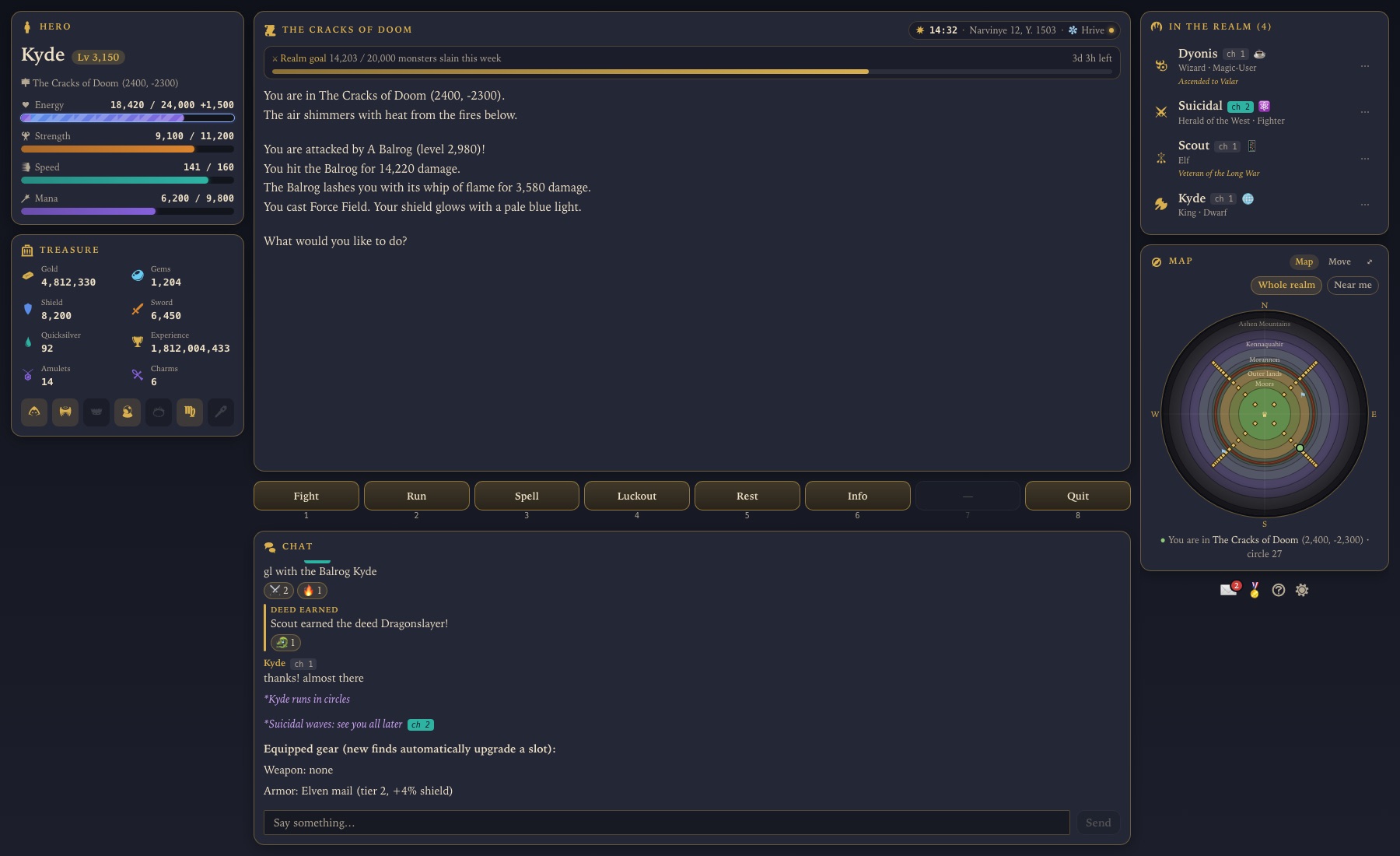
Your character's name, level and location (with coordinates), and four bars: Energy (your health; a force field shows as an extra +amount), Strength, Speed and Mana. Each bar shows the current value against the maximum. Your shield, sword and quicksilver are already counted in.
Treasure
Gold, gems, shield, sword, quicksilver, experience, amulets and charms. The row of icons below lights up for the special things you're carrying or have earned: cloak, blessing, crown or staff, palantir, ring, virgin and more. On a computer, hover over an icon to see what it is.
The Realm
The story of your adventure: where you are, what you meet and what happens in each fight. The panel's title is your current location. On the right of the title is the realm clock: the time of day (a sun or moon), the date and the season. Hover over or tap the clock to see the season's effects and any season event. Under the title, a bar shows this week's realm goal and how long is left.
Your choices
The eight buttons under the story are your choices for each turn, such as Fight, Run, Spell or Rest. On a computer you can also press the keys 1 to 8, or the space bar for the first button. One button changes as you rise in rank: Help at first, then Enact, Decree, Intervene and Command for the Steward, King or Queen, Council and Valar.
In the Realm
Everyone playing right now, with their class and rank (Knight, Steward, King, Queen, Council, Valar, Apprentice or Game Wizard). Use the … menu next to a name to examine, report or block that player.
Map and Move
The Map shows the whole realm, or the lands near you, with your own position marked. Hover over or tap anywhere to see its land and coordinates; pick a spot and choose Walk there to go. The ⤢ button opens the full map. On the realms beyond Middle-earth it shows that realm's own map.
The Move tab is the compass: it moves you one step in any direction, and the middle button rests. To travel further, choose Move To and enter coordinates: your character walks there step by step.
Chat
The chat sits under your choices. Talk with everyone on your channel. You start on channel 1, the newcomers' channel, where bad language isn't allowed.
Change channel from the Info menu. Chat commands such as /whisper, /ignore and
/report are on the Chat Commands page.
On a phone
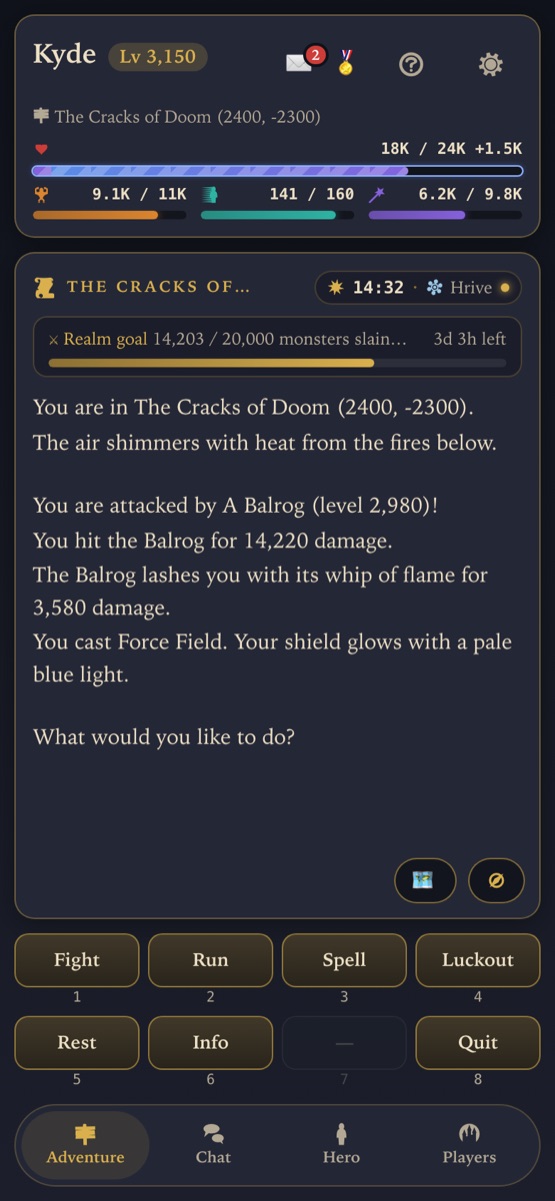
The two buttons in the corner of the story open the map and show or hide the movement pad.
Ravens, deeds, help and settings
Under the map (at the top on a phone) are four small buttons: your ravens (messages from other players, with a count of the unread), your deeds and titles, help, and settings.
Settings
The gear button opens Settings: the treasure icon style, the realm, and the screen style. Prefer the original look? Choose Style → Legacy for the classic layout.